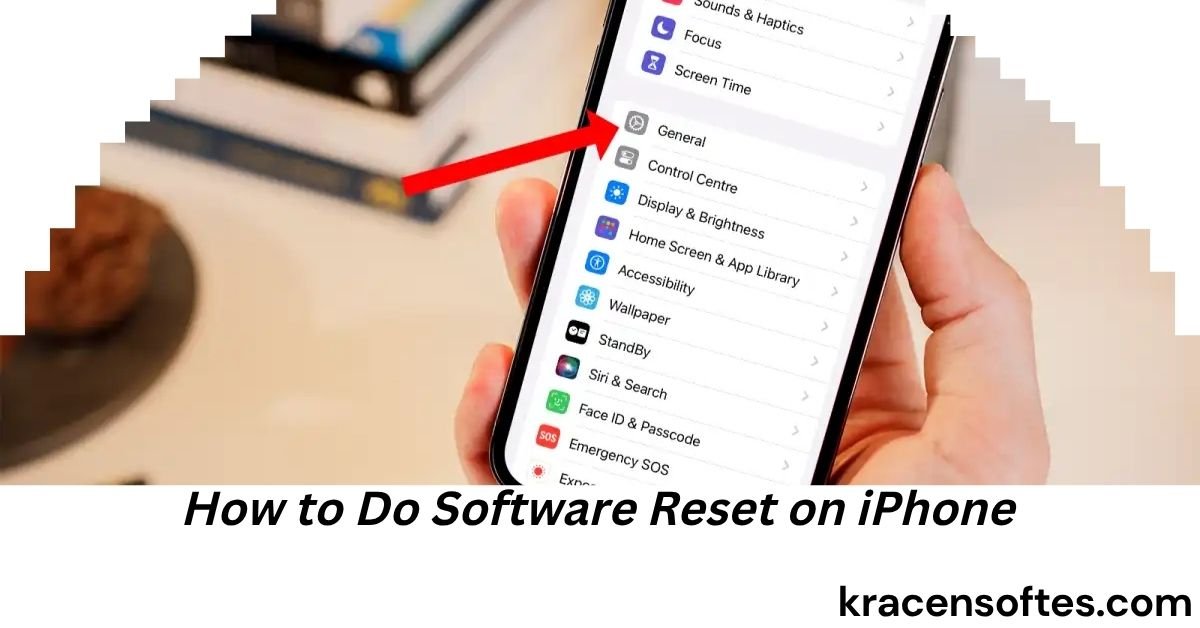
If your iPhone is freezing, running slowly, apps keep crashing, or the device is behaving strangely, learning how to do software reset on iPhone can solve many common problems without deleting your personal data.
A software reset is one of the safest troubleshooting methods available for iPhone users. Unlike a factory reset, a software reset does not erase photos, messages, contacts, apps, or settings. Instead, it simply restarts the operating system and clears temporary glitches that may be causing performance issues.
In this comprehensive guide, you will learn exactly how to do software reset on iPhone, when you should use it, what happens during the process, and how the steps differ across various iPhone models, including older devices such as the iPhone 5s.
Whether you own the newest iPhone or an older model, this guide provides everything you need to know in simple, easy-to-follow language.
What Is a Software Reset on an iPhone?
A software reset is a restart procedure that refreshes the iPhone’s operating system without removing your personal information.
Many users confuse a software reset with a factory reset. These are completely different processes.
A software reset:
- Restarts iOS
- Clears temporary memory issues
- Fixes minor software bugs
- Does not erase data
- Takes less than a minute
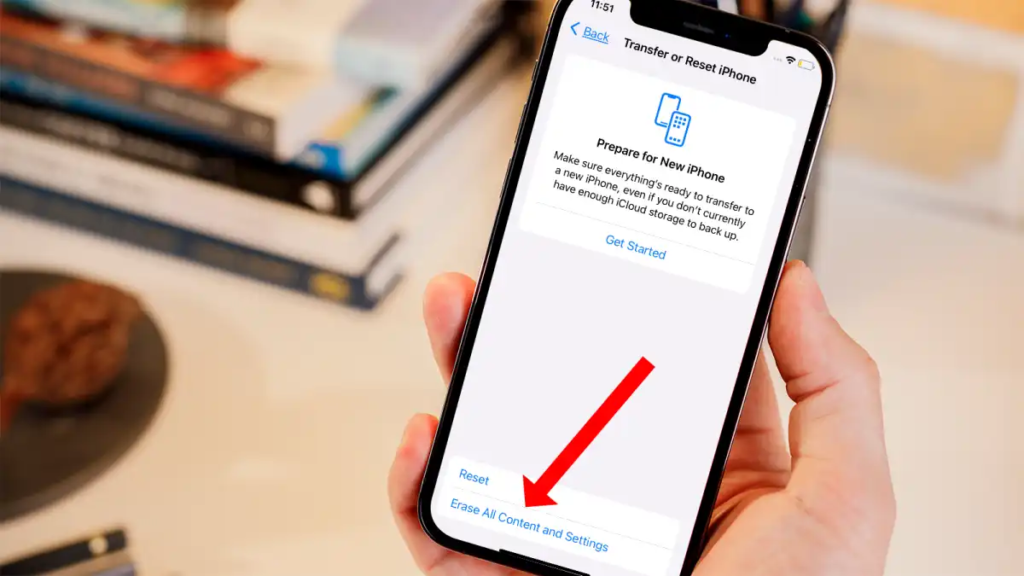
A factory reset:
- Erases all content and settings
- Removes apps and accounts
- Returns the iPhone to its original state
- Requires setup from scratch
When people search for how to do software reset on iPhone, they are usually looking for a safe way to fix device problems without losing important information.
Why You Might Need a Software Reset
Your iPhone may benefit from a software reset in many situations.
Common signs include:
Frozen Screen
Sometimes the display becomes unresponsive and does not react to taps or swipes.
Apps Keep Crashing
Applications may unexpectedly close or fail to load properly.
Slow Performance
An iPhone can occasionally become sluggish due to temporary software issues.
Touchscreen Problems
The screen may respond slowly or inconsistently.
Network Issues
Wi-Fi, Bluetooth, or cellular connections may stop working correctly.
Battery Drain
Unexpected battery consumption can sometimes be resolved through a software reset.
System Glitches After Updates
After installing a new iOS update, temporary bugs may appear that disappear after a restart.
Also Read: How Can I Update My iPhone Software? The Complete Step-by-Step Guide for 2026
Understanding the Different Types of iPhone Resets
Before learning how to do software reset on iPhone, it is important to understand the available reset options.
Standard Restart
A regular shutdown and restart.
Best for:
- Minor issues
- Slow performance
- Small glitches
Force Restart
A stronger reset that forces the device to reboot.
Best for:
- Frozen screens
- Black screens
- Unresponsive devices
Factory Reset
A complete wipe of the device.
Best for:
- Selling an iPhone
- Serious software corruption
- Starting fresh
For most troubleshooting situations, a software reset means either a standard restart or a force restart.
How to Do Software Reset on iPhone (Newer Models)
If you own an iPhone X, XR, XS, 11, 12, 13, 14, 15, or later model, follow these steps.
Method 1: Standard Software Reset
- Press and hold the Side button and either Volume button.
- Wait until the power slider appears.
- Drag the slider to turn off the phone.
- Wait 30 seconds.
- Press and hold the Side button again.
- Release when the Apple logo appears.
This is the easiest method for how to do a software reset on iPhone when the device is still responding normally.
How to Force Restart Newer iPhones
If the screen is frozen, use this method.
- Quickly press Volume Up.
- Quickly press Volume Down.
- Press and hold the Side button.
- Continue holding until the Apple logo appears.
- Release the button.
This process forces the operating system to restart.
Many Apple technicians recommend this method as the first troubleshooting step before trying more advanced solutions.
How to Do Software Reset on iPhone 8 and iPhone SE (2nd Generation and Later)
The process is almost identical to newer iPhones.
Normal Restart
- Hold the Side button.
- Drag the power slider.
- Wait 30 seconds.
- Turn the phone back on.
Force Restart
- Press Volume Up.
- Press Volume Down.
- Hold the Side button.
- Wait for the Apple logo.
This procedure refreshes the operating system without affecting personal files.
How to Do Software Reset on iPhone 7 and iPhone 7 Plus
The iPhone 7 series uses a different method.
Standard Restart
- Hold the Side button.
- Move the power slider.
- Wait for shutdown.
- Turn the phone back on.
Force Restart
- Press and hold the Volume Down button.
- Press and hold the Side button simultaneously.
- Keep holding both buttons.
- Release when the Apple logo appears.
This remains one of the most effective troubleshooting methods for iPhone 7 users.
How to Do a Software Reset on iPhone 6s and Earlier Models
Older iPhones use the Home button for resets.
Normal Restart
- Press and hold the Power button.
- Move the power slider.
- Wait for shutdown.
- Restart the phone.
Force Restart
- Hold the Home button.
- Hold the Power button.
- Continue holding both.
- Release after the Apple logo appears.
The process works for:
- iPhone 6s
- iPhone 6
- iPhone 6 Plus
- iPhone 5s
- iPhone 5
- iPhone 4s
How to Do a Software Reset on iPhone 5s
Many users still search specifically for how to do a software reset on iPhone 5s.
Although the device is older, the reset procedure remains simple.
Regular Software Reset for iPhone 5s
- Press and hold the Power button located on top of the device.
- Wait for the Slide to Power Off screen.
- Move the slider.
- Wait 30 seconds.
- Press the Power button again until the Apple logo appears.
Force Software Reset for iPhone 5s
If the phone is frozen:
- Hold the Home button.
- Hold the Power button.
- Keep both buttons pressed.
- Ignore the shutdown screen.
- Release both buttons after the Apple logo appears.
This method is the official approach for how to do a software reset on iPhone 5s when the device becomes unresponsive.
Also Read: Do Mini Computers Come With Windows 11 and Other Software? A Complete Guide for Buyers in 2026
What Happens During a Software Reset?
Many people worry about losing data.
Fortunately, a software reset is completely safe.
The process:
- Reloads iOS
- Clears temporary memory
- Ends problematic background processes
- Refreshes network services
- Restarts system functions
The process does not:
- Delete photos
- Delete videos
- Remove apps
- Erase messages
- Remove contacts
- Delete passwords
Think of it as rebooting a computer rather than reinstalling it.
Benefits of Performing a Software Reset
A software reset offers several advantages.
Improved Performance
Temporary software issues are often cleared immediately.
Better App Stability
Apps may stop crashing after the restart.
Reduced System Lag
Many users notice smoother navigation.
Network Refresh
Wi-Fi and cellular services often reconnect properly.
Battery Optimization
Background processes causing battery drain may stop running.
Quick Troubleshooting
It takes less than a minute and requires no technical expertise.
Common Problems Fixed by a Software Reset
A software reset can resolve many everyday issues.
Examples include:
- Frozen applications
- Touchscreen lag
- Keyboard delays
- Bluetooth problems
- Wi-Fi connection failures
- App crashes
- Camera glitches
- Notification issues
- Audio problems
- Performance slowdowns
While it is not a cure for every problem, it is often the fastest solution.
When a Software Reset May Not Work
Some issues require more advanced troubleshooting.
Examples include:
Physical Damage
A reset cannot repair broken hardware.
Water Damage
Liquid exposure requires professional diagnosis.
Battery Failure
A worn battery may need replacement.
Storage Problems
An almost-full device may continue performing poorly.
Corrupted iOS Installation
You may need to update or restore the device.
Software Reset vs Hard Reset
These terms are often used interchangeably, but many technicians make a distinction.
Software Reset
- Normal restart
- Gentle reboot
- No data loss
Hard Reset
- Force restart
- Emergency reboot
- Used when frozen
Both methods are safe and do not erase personal data.
Best Practices Before Performing a Software Reset
Although a software reset is safe, following a few best practices can help.
Save Unsaved Work
Close documents or notes you are editing.
Charge the Battery
Maintain at least 20% battery power.
Close Critical Applications
Allow apps to save recent changes.
Back Up Important Data
Regular backups are always recommended.
How Often Should You Reset Your iPhone?
There is no fixed schedule.
However, many technology professionals suggest restarting your iPhone occasionally.
Good situations include:
- After major iOS updates
- When experiencing slow performance
- After installing many new apps
- When battery behavior seems unusual
A weekly or biweekly restart can help maintain smooth performance.
Can a Software Reset Improve Battery Life?
Sometimes, yes.
If a background process becomes stuck, battery consumption can increase.
A software reset:
- Stops problematic processes
- Refreshes background services
- Re-establishes normal system operations
While it will not repair an old battery, it may improve temporary battery issues.
How Software Resets Help After iOS Updates
After installing an iOS update, your device performs many background tasks.
These tasks may include:
- Indexing files
- Rebuilding databases
- Optimizing apps
Occasionally, small glitches appear.
Performing a software reset can help finalize these background operations and improve overall performance.
Signs That Your iPhone Needs More Than a Software Reset
Watch for these warning signs.
Repeated Freezing
If freezes happen daily, deeper troubleshooting may be necessary.
Random Restarts
Unexpected reboots could indicate software corruption or hardware problems.
Battery Swelling
This requires immediate professional service.
Persistent App Crashes
You may need app updates or an iOS reinstall.
Storage Warnings
Insufficient storage can create performance issues that a reset cannot solve.
Advanced Troubleshooting After a Software Reset
If problems continue, try the following steps.
Update iOS
Install the latest version of iOS.
Update Apps
Outdated applications may cause instability.
Check Storage Space
Remove unused apps and files.
Reset Network Settings
This can resolve connection issues.
Restore Through Computer
A full restore may fix serious software corruption.
Contact Apple Support
Professional assistance may be necessary for persistent issues.
Mistakes to Avoid During an iPhone Software Reset
Many users make simple mistakes.
Holding the Wrong Buttons
Different models use different button combinations.
Releasing Buttons Too Early
Wait until the Apple logo appears.
Confusing a Factory Reset with a Software Reset
Always confirm which procedure you are performing.
Ignoring Battery Issues
If the battery is failing, a reset may not solve the problem.
Expert Insights on iPhone Software Resets
One reason software resets are so effective is that modern smartphones run many background processes simultaneously.
Over time, temporary files, stalled services, and software conflicts can accumulate. A restart clears these temporary conditions and allows the operating system to reload essential services from a clean state.
In practical terms, a software reset is similar to giving your iPhone a fresh start without changing any of your personal information.
Also Read: What Is Team Software Process? A Complete Guide to TSP in Modern Software Development
Many users immediately jump to factory resets when experiencing problems. In reality, a simple software reset often resolves the issue in less than a minute. This makes it one of the most valuable troubleshooting tools available to every iPhone owner.
Frequently Asked Questions
Can a software reset remove viruses from an iPhone?
A software reset may stop suspicious processes temporarily, but it is not designed to remove malware. Updating iOS and removing suspicious apps is usually more effective.
Can I perform a software reset while charging my iPhone?
Yes. A software reset can be performed while the device is connected to a charger.
Will my Apple ID be removed after a software reset?
No. Your Apple ID, settings, and account information remain unchanged.
Can a software reset fix Face ID problems?
Minor Face ID glitches may be resolved through a restart, but hardware-related issues usually require additional troubleshooting.
Does a software reset affect eSIM settings?
No. eSIM information remains intact after a software reset.
Can I reset an iPhone if the Side button is broken?
Yes. You can power off through Settings > General > Shut Down if the touchscreen still works.
Will alarms still work after a software reset?
Yes. Existing alarms remain saved and active after the device restarts.
Can a software reset improve gaming performance?
In some cases, yes. Restarting the device can free system resources and improve game stability.
Is it safe to perform multiple software resets in one day?
Yes. Software resets do not damage the iPhone and can be performed whenever necessary.
Can a software reset fix overheating issues?
If overheating is caused by a temporary software process, a reset may help. Persistent overheating may indicate a hardware or battery issue.
Conclusion
Knowing how to do software reset on iPhone is one of the most useful skills every iPhone owner should learn. Whether your device is running slowly, freezing, experiencing app crashes, or showing unusual behavior, a software reset provides a quick and safe solution without deleting any personal data.
The process varies slightly depending on your iPhone model, but the goal remains the same: refresh the operating system and clear temporary software issues. Whether you are learning how to do a software reset on iPhone, troubleshooting a frozen screen, or specifically searching for how to do a software reset on iPhone 5s, the steps outlined in this guide can help restore normal performance in just a few minutes.
Before considering more drastic measures such as a factory reset, always start with a software reset. It is fast, safe, and often surprisingly effective. For millions of iPhone users, this simple troubleshooting step remains the first and best solution for solving everyday iOS problems.