If you are asking, “how can I update my iPhone software,” you are not alone. Millions of iPhone users search for this question every year because keeping an iPhone updated is one of the most important things you can do to maintain security, performance, battery efficiency, and access to new features.
Apple regularly releases iOS updates that improve the user experience, fix bugs, patch security vulnerabilities, and introduce exciting new capabilities. However, many users are unsure about the correct update process, what to do before updating, how to solve update errors, and whether they should install updates immediately.
This complete guide explains everything you need to know about how can I update my iPhone software. Whether you own a newer iPhone or an older model, this article provides easy-to-follow instructions, practical tips, troubleshooting solutions, and expert insights to help you update your device safely and successfully.
Why Updating Your iPhone Software Is Important
Many people delay software updates because they think updates only add minor changes. In reality, software updates are critical for your device’s health and security.
Benefits of updating your iPhone include:
- Improved security protection
- Better device performance
- Bug fixes
- Enhanced battery optimization
- Access to new iOS features
- Improved app compatibility
- Better privacy controls
- Enhanced stability and reliability
When Apple discovers security vulnerabilities, it often releases updates quickly. Installing these updates helps protect your personal information from potential threats.
Understanding iPhone Software Updates
Before learning how can I software update my iPhone, it helps to understand the types of updates Apple provides.
Major iOS Updates
Major updates introduce significant new features and improvements.
Examples include:
- iOS 17
- iOS 18
- Future iOS releases
These updates often include:
- New design elements
- New productivity tools
- Camera improvements
- AI-powered features
- Security enhancements
Minor Updates
Minor updates focus on:
- Security patches
- Performance fixes
- Bug corrections
- Stability improvements
Examples include:
- iOS 18.1
- iOS 18.2
- iOS 18.3
Both major and minor updates are important and should not be ignored.
How Can I Update My iPhone Software Automatically?
The easiest method is enabling automatic updates.
Follow these steps:
- Open Settings.
- Tap General.
- Tap Software Update.
- Select Automatic Updates.
- Turn on:
- Download iOS Updates
- Install iOS Updates
- Security Responses & System Files
Once enabled, your iPhone can automatically download and install updates overnight while charging and connected to Wi-Fi.
Also Read: How to Change My PC Spec With Software: The Complete 2026 Guide
This is the simplest answer to the question “how can I update my software on iPhone” without having to remember every update release.
How Can I Update My iPhone Software Manually?
Many users prefer manual control over updates.
Step 1: Connect to Wi-Fi
Software updates can be large.
Connect to a reliable Wi-Fi network before beginning.
Step 2: Check Battery Level
Ensure your battery is:
- Above 50%, or
- Connected to a charger
Step 3: Open Settings
Navigate to:
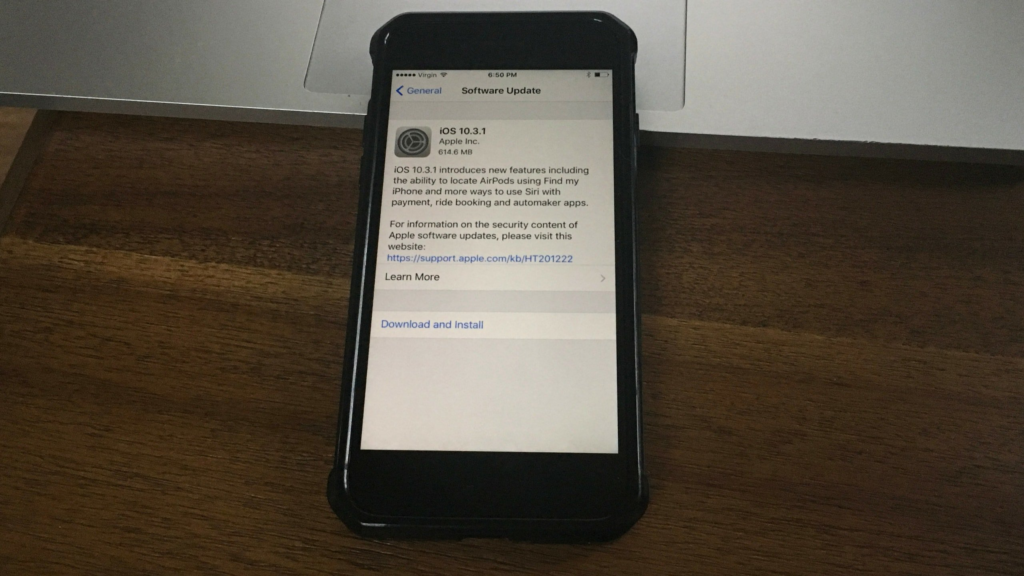
Settings → General → Software Update
Step 4: Check for Updates
Your iPhone will automatically search for available updates.
Step 5: Download and Install
If an update is available:
- Tap Download and Install.
- Enter your passcode if prompted.
- Agree to Apple’s terms and conditions.
- Wait for the download to complete.
- Tap Install Now.
The device will restart and complete installation.
How Long Does an iPhone Software Update Take?
The update duration depends on:
- Internet speed
- Update size
- iPhone model
- Server traffic
Typical time estimates:
| Task | Estimated Time |
| Download | 5–30 minutes |
| Preparation | 5–15 minutes |
| Installation | 10–30 minutes |
| Total Process | 20–60 minutes |
Larger iOS releases may require additional time.
What to Do Before Updating Your iPhone
Many guides overlook preparation steps, but these steps significantly reduce update risks.
Create a Backup
Back up your iPhone before installing any update.
You can use:
- iCloud Backup
- Computer Backup
Free Up Storage
Insufficient storage is one of the most common update problems.
Check storage:
Settings → General → iPhone Storage
Remove:
- Unused apps
- Large videos
- Duplicate photos
- Downloaded files
Update Important Apps
Visit the App Store and install available app updates before updating iOS.
This reduces compatibility issues after installation.
Ensure Stable Internet
Interrupted downloads can cause update failures.
Use:
- Strong Wi-Fi
- Reliable internet connection
How Can I Software Update My iPhone Using a Computer?
You can also update your iPhone through a Mac or Windows PC.
Using a Mac
- Connect iPhone with a cable.
- Open Finder.
- Select your iPhone.
- Click Check for Update.
- Click Download and Update.
Using Windows
- Install the latest version of iTunes.
- Connect your iPhone.
- Open iTunes.
- Select your device.
- Click Check for Update.
- Choose Download and Update.
This method is useful when over-the-air updates fail.
Common Reasons an iPhone Won’t Update
Many users wonder why updates sometimes fail.
Common causes include:
Insufficient Storage
The most common issue.
Solution:
- Delete unnecessary files
- Offload unused apps
Poor Internet Connection
A weak Wi-Fi signal may interrupt downloads.
Solution:
- Reconnect to Wi-Fi
- Restart the router
Low Battery
Apple requires sufficient battery power.
Solution:
- Charge your device
Apple’s Servers Are Busy
Popular updates create heavy demand.
Solution:
- Wait a few hours
- Try again later
Unsupported Device
Older iPhones may not support newer iOS versions.
Solution:
- Verify compatibility
Signs Your iPhone Needs a Software Update
Many users forget to check for updates.
Watch for:
- Update notifications
- App compatibility warnings
- Increased bugs
- Performance issues
- Security alerts
Regular update checks help maintain device performance.
Should You Update Your iPhone Immediately?
Many users ask whether they should update right away.
The answer depends on your priorities.
Reasons to Update Immediately
- Critical security fixes
- Important bug corrections
- Device stability improvements
- New feature access
Reasons to Wait a Few Days
- Monitoring early user feedback
- Avoiding rare launch-day bugs
- Confirming app compatibility
For most users, installing updates within one or two weeks is a practical approach.
How to Check Your Current iOS Version
To verify your installed version:
- Open Settings.
- Tap General.
- Tap About.
- Look for iOS Version.
Comparing this version with the latest available release helps determine whether an update is needed.
What Happens During an iPhone Software Update?
Many users see progress bars and wonder what the device is doing.
The process typically includes:
Download Phase
The update package downloads from Apple servers.
Verification Phase
Apple verifies the software package.
Preparation Phase
The device prepares files for installation.
Installation Phase
The operating system is replaced with the new version.
Optimization Phase
Apps and system services are optimized for the updated software.
Understanding these stages can reduce unnecessary concern during installation.
How Often Does Apple Release Software Updates?
Apple releases updates throughout the year.
Typical schedule:
Major Updates
Usually once per year.
Security Updates
As needed.
Feature Updates
Several times annually.
Emergency Fixes
Released quickly when major vulnerabilities are discovered.
Keeping automatic updates enabled helps ensure you never miss important releases.
How Can I Cancel a Software Update on My iPhone?
Many users search for “how can I cancel a software update on my iPhone.”
If an update has already downloaded but has not yet installed:
- Open Settings.
- Tap General.
- Tap iPhone Storage.
- Find the downloaded iOS update.
- Tap the update file.
- Select Delete Update.
This removes the downloaded update.
If installation has already started, cancellation may not be possible without restoring the device.
Can You Downgrade After Updating?
Apple generally allows downgrades only for a limited time after a new release.
Once Apple stops signing an older version:
- Downgrading becomes difficult or impossible.
Therefore, think carefully before installing beta software or experimental updates.
Does Updating Improve Battery Life?
Sometimes yes.
Many updates include:
- Battery optimization
- Power management improvements
- Bug fixes affecting battery drain
However, immediately after updating, temporary battery drain may occur while the system re-indexes files and optimizes apps.
This usually resolves within a few days.
Does Updating Make Older iPhones Slower?
This is one of the most common myths.
In most situations:
- Updates improve stability.
- Updates improve security.
- Updates enhance compatibility.
Older devices may experience slower performance when new features require additional resources, but Apple continually optimizes software for supported hardware.
The security benefits generally outweigh minor performance differences.
Security Benefits of Software Updates
Modern smartphones store valuable information including:
- Passwords
- Banking details
- Photos
- Emails
- Personal documents
Security updates help protect this data.
Cybersecurity experts consistently recommend keeping operating systems fully updated because attackers often target known vulnerabilities that have already been patched.
Troubleshooting iPhone Update Problems
Update Stuck on Preparing Update
Solutions:
- Restart iPhone
- Delete update file
- Re-download update
Update Verification Failed
Solutions:
- Check internet connection
- Restart device
- Retry installation
Not Enough Storage
Solutions:
- Remove large files
- Offload unused apps
Update Stuck on Apple Logo
Solutions:
- Force restart
- Connect to a computer
- Use recovery mode if necessary
Update Not Showing
Solutions:
- Restart device
- Check compatibility
- Verify internet access
Best Practices for Future iPhone Updates
Follow these habits:
Enable Automatic Security Updates
This keeps critical protections current.
Maintain Free Storage
Leave extra storage available for updates.
Backup Regularly
Consistent backups protect your information.
Avoid Beta Software on Primary Devices
Beta versions may contain bugs.
Update Apps Frequently
Updated apps work better with newer iOS versions.
Expert Insights: The Smartest Update Strategy
Many online guides simply tell users to install updates immediately. A more balanced approach is often better.
Also Read: What Is Software Development? A Complete Beginner’s Guide to Modern Software Development in 2026
For most users:
- Back up your device.
- Wait 24–72 hours after a major release.
- Review user feedback.
- Install the update.
For critical security updates:
- Update as soon as possible.
This strategy balances security, reliability, and convenience.
Frequently Asked Questions
Can I update my iPhone without Wi-Fi?
Yes. Some updates can be downloaded using cellular data, depending on your carrier and Apple settings. Large updates may still require Wi-Fi.
Will updating my iPhone delete my photos?
No. Software updates normally do not delete personal data, photos, apps, or messages. However, creating a backup is always recommended.
Can I use my iPhone while it is updating?
You can use the device while the update is downloading. During installation, the device restarts and cannot be used until the process finishes.
Why does my iPhone say it is up to date when it is not?
Possible reasons include server delays, unsupported hardware, or temporary communication issues with Apple’s update servers.
Can I schedule iPhone updates for nighttime?
Yes. Automatic updates can download and install overnight while the phone is connected to power and Wi-Fi.
Does updating improve camera quality?
Many iOS releases include camera enhancements, image processing improvements, and new photography features that can improve overall photo quality.
Can I update my iPhone if I am traveling internationally?
Yes. As long as you have a stable internet connection and sufficient battery power, you can update from almost anywhere in the world.
What happens if my iPhone turns off during an update?
The device may attempt recovery automatically. In some cases, connecting it to a computer and using recovery mode may be necessary.
Do software updates make apps work better?
Often yes. Many developers optimize their apps for the latest iOS versions, resulting in improved performance and compatibility.
Is it safe to skip several software updates?
While your phone may continue functioning, skipping updates can expose your device to security vulnerabilities and app compatibility issues.
Conclusion
If you have been wondering, “how can I update my iPhone software,” the process is simpler than many people think. Open Settings, navigate to General, select Software Update, and install any available updates. You can also enable automatic updates for a hands-free experience.
Understanding how can I software update my iPhone and how can I update my software on iPhone is essential for maintaining security, performance, and access to the latest features. Regular updates help protect your personal information, improve device reliability, and ensure compatibility with modern apps.
Whether you choose automatic updates, manual installations, or computer-based updates, keeping your iPhone current is one of the best investments you can make in the long-term health of your device. By following the strategies and best practices outlined in this guide, you can confidently manage future iOS updates and enjoy the best possible iPhone experience..