Removing software from a Windows 10 computer may seem simple, but many users discover that uninstalling a program does not always remove everything. Leftover files, registry entries, startup items, temporary data, and hidden folders can remain on the system long after the software is gone.
If you are searching for how to completly remove software in win 10, this detailed guide will show you every method available. Whether you want to free up storage space, improve performance, troubleshoot software conflicts, or completely erase unwanted programs, this article provides all the information you need.
By following these proven methods, you can safely remove software and prevent leftover files from cluttering your Windows 10 system.
Why Completely Removing Software Matters
Many people believe clicking the “Uninstall” button removes everything. In reality, most applications leave behind data.
Common leftovers include:
- Configuration files
- User preferences
- Temporary files
- Log files
- Registry entries
- Cached data
- Startup tasks
- Background services
Over time, these leftovers can create several problems:
- Reduced storage space
- Slower system performance
- Software conflicts
- Installation errors
- Registry clutter
- Privacy concerns
Learning how to completly remove software in win 10 helps keep your computer clean, organized, and efficient.
What Happens During a Normal Uninstall
When you uninstall software through Windows 10, the application usually launches its built-in uninstall program.
The uninstaller typically removes:
- Main program files
- Desktop shortcuts
- Start Menu entries
- Core application components
However, many uninstallers intentionally leave user data behind in case you reinstall the program later.
This is why complete software removal often requires additional steps.
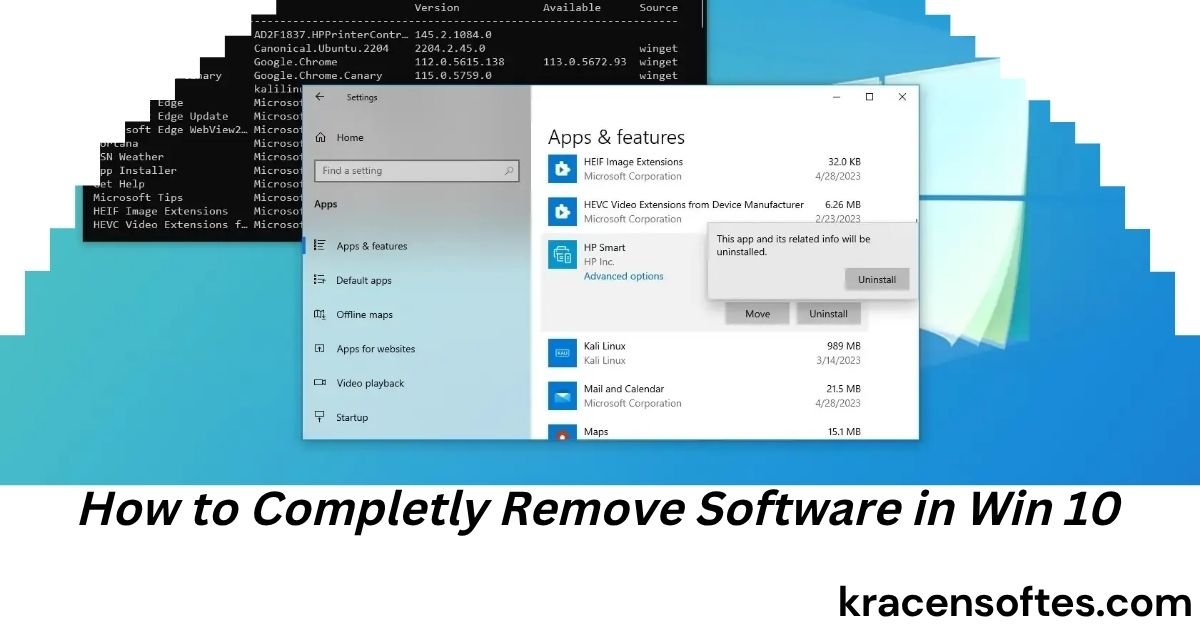
Method 1: Remove Software Through Windows Settings
The easiest way to uninstall software is through Windows Settings.
Step 1
Click the Start Menu.
Step 2
Open Settings.
Step 3
Select Apps.
Step 4
Choose Apps & Features.
Step 5
Scroll through the installed programs list.
Step 6
Select the software you want to remove.
Step 7
Click Uninstall.
Step 8
Follow the on-screen instructions.
This method works for most modern applications installed on Windows 10.
Also Read: How to Become a Software Developer: The Complete 2026 Step-by-Step Career Guide
Method 2: Uninstall Programs Using Control Panel
Many traditional desktop applications can be removed through Control Panel.
Step 1
Press Windows + R.
Step 2
Type:
appwiz.cpl
Step 3
Press Enter.
Step 4
Locate the software.
Step 5
Right-click the program.
Step 6
Choose Uninstall.
Step 7
Complete the removal process.
This remains one of the most reliable methods for removing older software.
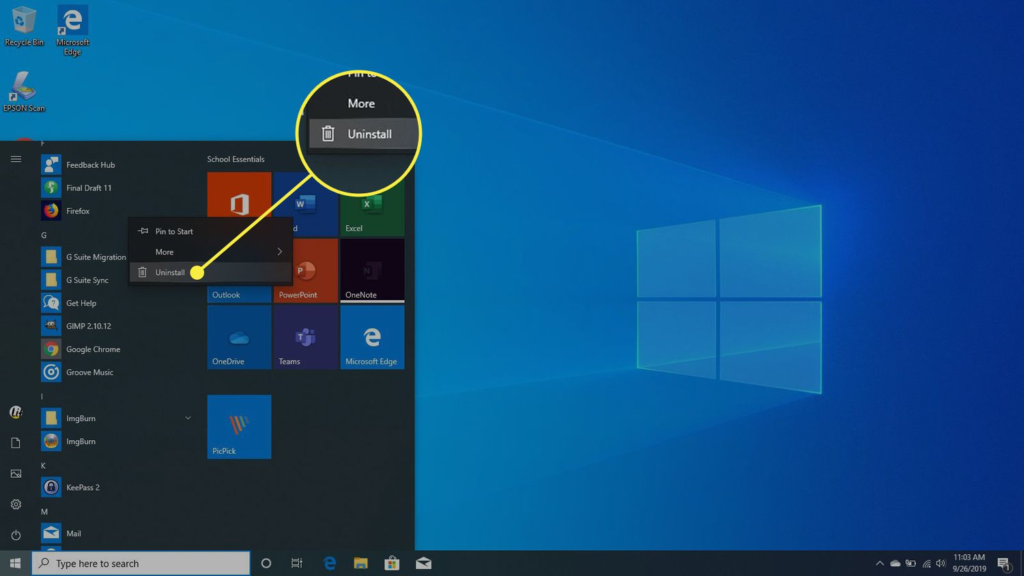
Method 3: Remove Microsoft Store Apps
Microsoft Store applications use a different installation structure.
Step 1
Open Start Menu.
Step 2
Find the application.
Step 3
Right-click the app.
Step 4
Choose Uninstall.
Alternatively:
- Open Settings
- Select Apps
- Choose Apps & Features
- Uninstall the app
Store applications usually leave fewer leftovers than traditional desktop programs.
How to Find Leftover Files After Uninstalling
Even after successful removal, leftover files often remain.
Check these locations:
Program Files
Look in:
C:\Program Files
and
C:\Program Files (x86)
Delete any folders related to the removed software.
AppData Folder
Press Windows + R.
Type:
%appdata%
Look for folders connected to the removed application.
Also check:
%localappdata%
Many programs store settings and cached data here.
ProgramData Folder
Open:
C:\ProgramData
Many applications leave shared files in this folder.
Delete only folders related to the removed software.
How to Remove Software Registry Entries
The Windows Registry stores software settings and system information.
Sometimes uninstallers leave registry entries behind.
Important Warning
Always back up the registry before making changes.
Step 1
Press Windows + R.
Step 2
Type:
regedit
Step 3
Press Enter.
Step 4
Use Ctrl + F.
Step 5
Search for the software name.
Step 6
Carefully delete related entries.
Step 7
Continue searching until no entries remain.
Registry cleanup should be done carefully because deleting the wrong keys can affect Windows.
How to Delete Startup Entries
Some software creates startup items that remain after uninstalling.
Step 1
Press Ctrl + Shift + Esc.
Step 2
Open Task Manager.
Step 3
Select the Startup tab.
Step 4
Review startup programs.
Step 5
Disable unnecessary entries.
Removing startup leftovers helps improve boot speed.
How to Remove Windows Services Left Behind
Certain programs install services that continue running after uninstalling.
Also Read: HOW MUCH A SOFTWARE ENGINEER CAN EARN: COMPLETE 2026 SALARY GUIDE IN THE USA AND CANADA
Step 1
Press Windows + R.
Step 2
Type:
services.msc
Step 3
Press Enter.
Step 4
Find services related to the removed software.
Step 5
Stop the service.
Step 6
Delete it if necessary using Command Prompt.
Example:
sc delete ServiceName
Only remove services you know belong to the software.
Using Command Prompt to Remove Software
Advanced users can remove software through Command Prompt.
Step 1
Open Command Prompt as Administrator.
Step 2
Type:
wmic product get name
Step 3
Locate the software name.
Step 4
Run:
wmic product where name=”Program Name” call uninstall
This method works for many traditional applications.
Using PowerShell to Remove Software
PowerShell provides additional software management options.
Example Command
Get-AppxPackage
Lists installed Microsoft Store apps.
To remove an app:
Remove-AppxPackage PackageName
PowerShell is especially useful for removing built-in Windows applications.
How to Remove Stubborn Programs That Will Not Uninstall
Sometimes software refuses to uninstall.
Common causes include:
- Corrupted files
- Missing uninstallers
- Running background processes
- Permission issues
Solutions include:
- Restarting the computer
- Running as administrator
- Using Safe Mode
- Using specialized removal tools
How to Use Safe Mode for Complete Software Removal
Safe Mode starts Windows with minimal drivers and services.
Enter Safe Mode
- Open Settings
- Select Update & Security
- Choose Recovery
- Click Restart Now
- Navigate to Advanced Startup
- Select Safe Mode
Once in Safe Mode:
- Uninstall the software
- Delete remaining files
- Restart normally
This often solves stubborn removal issues.
Best Third-Party Uninstaller Tools
Sometimes built-in Windows tools are not enough.
Popular uninstallers include:
Revo Uninstaller
Features:
- Deep scans
- Registry cleanup
- Leftover file removal
IObit Uninstaller
Features:
- Batch uninstalling
- Browser extension cleanup
- Software health monitoring
Geek Uninstaller
Features:
- Portable version
- Deep cleanup
- Lightweight design
Wise Program Uninstaller
Features:
- Force uninstall
- Residual file detection
- User-friendly interface
These tools can significantly improve software removal results.
Common Mistakes When Removing Software
Many users accidentally create problems during uninstallation.
Avoid these mistakes:
Deleting Program Files First
Always run the uninstaller before deleting folders.
Removing Unknown Registry Entries
Deleting the wrong registry keys can damage Windows.
Ignoring Leftover Files
Unused files can waste storage and cause clutter.
Forgetting Startup Items
Some applications continue launching after removal.
Not Restarting the System
A restart often completes the removal process.
Signs That Software Was Not Fully Removed
You may notice:
- Program folders still exist
- Error messages appear
- Startup entries remain
- Services continue running
- Registry references exist
- Reinstallation problems occur
These are clear indicators that further cleanup is needed.
How Complete Software Removal Improves Performance
Many users ask whether fully removing software actually improves performance.
The answer depends on the situation.
Benefits may include:
- Faster startup times
- Reduced background processes
- More available storage
- Improved system stability
- Fewer software conflicts
The biggest improvements usually come from removing large or poorly optimized programs.
When You Should Completely Remove Software
Consider complete removal when:
- The program is no longer needed
- Software is causing problems
- You are preparing to reinstall
- You want maximum privacy
- Storage space is limited
- You are troubleshooting Windows issues
A clean system generally performs better than one filled with unused applications.
How Businesses and IT Professionals Remove Software
Professional IT departments often use automated tools for software removal.
Common solutions include:
- PowerShell scripts
- Group Policy tools
- Microsoft Endpoint Manager
- Enterprise deployment software
These methods ensure consistent and complete removal across multiple computers.
Also Read: How Can I Update My iPhone Software? The Complete Step-by-Step Guide for 2026
Security Benefits of Complete Software Removal
Many users focus only on storage savings, but security is another important benefit.
Old software can:
- Leave vulnerable files behind
- Store personal information
- Create outdated services
- Maintain unnecessary permissions
Completely removing unused applications reduces potential attack surfaces.
Expert Tips for Keeping Windows 10 Clean
Here are practical recommendations:
- Review installed software monthly
- Remove unused applications
- Delete temporary files regularly
- Check startup programs
- Monitor storage usage
- Keep Windows updated
- Use trusted uninstall tools when needed
These habits help maintain long-term system performance.
Future of Software Removal in Windows
Modern applications are becoming easier to uninstall completely.
Microsoft continues improving:
- App management
- Storage optimization
- Cleanup utilities
- Package-based installations
Future Windows versions will likely provide even better software removal tools, reducing the need for manual cleanup.
Final Thoughts
Understanding how to completly remove software in win 10 is an important skill for maintaining a healthy computer. While Windows provides built-in uninstall tools, truly removing a program often requires additional steps such as deleting leftover files, cleaning registry entries, removing startup items, and checking background services.
For most users, uninstalling through Settings or Control Panel followed by checking AppData and ProgramData folders will achieve a nearly complete removal. For stubborn applications, Safe Mode and specialized uninstallers can provide deeper cleanup.
A clean Windows 10 system is easier to maintain, performs better, and reduces the risk of software conflicts. By following the methods outlined in this guide, you can confidently remove unwanted programs and keep your computer running smoothly.
Frequently Asked Questions
Can deleting a program folder uninstall software?
No. Simply deleting a program folder usually leaves registry entries, settings, and other components behind. Always use the software’s uninstall option first.
Why does software still appear after uninstalling?
This may happen because of leftover registry entries, corrupted uninstall records, or cached system information. Restarting Windows often helps update the installed programs list.
Is it safe to use third-party uninstallers?
Yes, reputable tools are generally safe. Always download them from official sources and create a restore point before making major system changes.
Can Windows 10 automatically remove leftover files?
Windows 10 removes some files during uninstalling, but it does not always remove every leftover file or registry entry.
How often should I clean unused software from my PC?
Most users benefit from reviewing installed programs every one to three months.
Will uninstalling software improve gaming performance?
It can if the software runs background processes, uses memory, consumes CPU resources, or creates startup tasks that affect performance.
What should I do if the uninstaller is missing?
Use Control Panel, Settings, Safe Mode, or a trusted uninstaller tool to remove the program.
Can malware disguise itself as normal software?
Yes. Some malicious programs appear as legitimate software. If you suspect malware, run a trusted antivirus scan before attempting removal.
Does reinstalling software remove old leftovers?
Not always. Some leftover files remain even after reinstalling and uninstalling again.
Should I create a restore point before removing software?
Yes. Creating a restore point is a smart safety measure, especially when editing the registry or removing system-level applications.